
Coding Tools
How to Set Up Continue AI Offline?

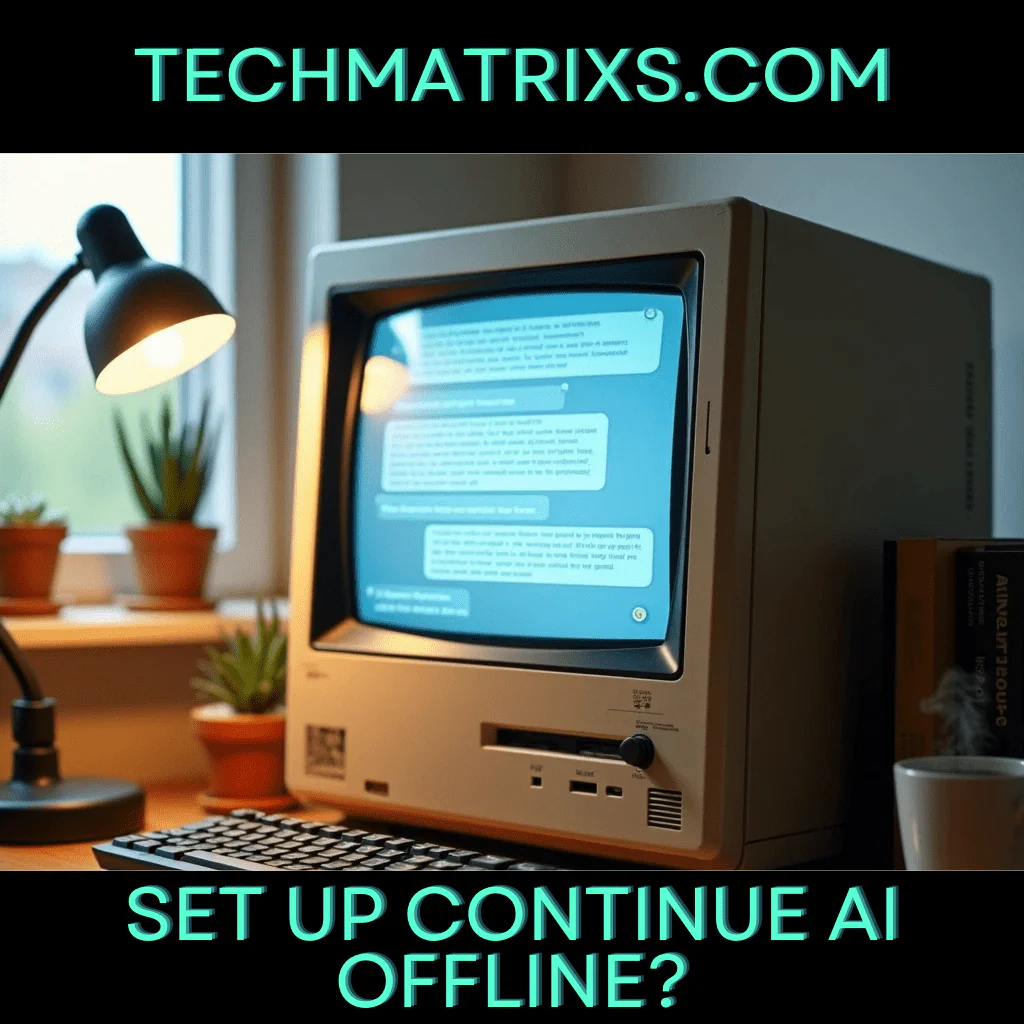
How to Set Up Continue AI Offline Mode: A Step-by-Step Guide for 2026
Introduction
Learn how to set up Continue AI offline mode step-by-step. Code securely with local models like Ollama, eliminate API costs, and eliminate lag.

Setting up continue ai offline mode can feel frustrating when you encounter connection errors or missing file issues during installation. I’ve seen many developers struggle with errors like “Max retries exceeded” or “FileNotFoundError” when trying to work without internet connectivity. For that reason, having a reliable offline setup is essential for uninterrupted coding sessions.
This guide walks you through everything you need to configure continue dev offline successfully. I’ll cover the system requirements, preparation steps, manual installation process, and configuration settings. In addition, I’ll address common troubleshooting scenarios to help you resolve issues quickly. By the end, you’ll have a fully functional offline Continue AI setup ready for 2026.
Understanding Continue AI Offline Mode Requirements
What is Continue AI offline mode
Continue AI offline mode runs the entire coding assistant system on your local machine without any internet connection. The extension connects to local language models through Ollama, which loads and runs models like Llama 3, Mistral, or Codellama directly on your hardware. In other words, your code never leaves your device and no prompts get sent to OpenAI, Google, or other cloud providers.
The setup works by configuring Continue to use OpenAI-compatible endpoints at localhost:11434 instead of remote APIs. You install the Continue extension from a .vsix file, disable telemetry in VS Code settings, and point the configuration to your locally running models. This creates a fully air-gapped environment where all processing happens on your machine.
Why use Continue dev offline
Running continue dev offline delivers several concrete advantages over cloud-based alternatives:
- Privacy: Your code physically never leaves the device, which creates a stronger compliance position for HIPAA-bound healthcare work, attorney-client material, and unreleased proprietary codebases
- Speed: Local models eliminate network latency and provide near-instant responses without waiting for API calls
- Cost efficiency: You avoid recurring API costs that run roughly USD 20.00-200 per month for cloud plans, paying only for the electricity to run models locally
- Customization: You can fine-tune models to your specific needs without relying on external providers
- Offline access: Work continues uninterrupted even without internet connectivity
For enterprises and privacy-conscious developers, this setup makes Continue viable for financial systems and any environment where confidentiality is non-negotiable.
System requirements for offline setup
You can run capable AI models on an 8 GB RAM laptop with no dedicated GPU in 2026. The trick involves quantization, where a GGUF Q4_K_M build compresses a model 60-75% with typically under 5% quality loss. A model requiring 16 GB at full precision fits in roughly 4.7 GB after compression.
Match your hardware to appropriate models: 4 GB RAM handles Phi-4-mini for basic Q&A and summaries using GPT4All or Ollama; 8 GB RAM runs Gemma 4 E4B or similar 8B-class models as solid daily drivers; 16 GB RAM supports Qwen 3.6 smaller variants or DeepSeek R1 7B for strong reasoning and coding; 32 GB+ accommodates larger Qwen 3.6 or Llama 4 Scout for near-frontier performance.
Apple Silicon Macs deserve special mention. On M-series devices, RAM doubles as GPU memory through unified architecture, so a 16 GB Mac often outperforms a 16 GB Windows laptop with a small dedicated GPU for local inference.
Preparing Your System for Offline Installation
Before installing continue ai offline mode, you need to gather several files and configure storage locations. Each component requires specific preparation steps to avoid connection errors during offline operation.
Download the Continue extension file
Get the .vsix file from the Continue GitHub Releases page rather than the VS Code marketplace. The direct download URL follows this pattern: https://${publisher}.gallery.vsassets.io/_apis/public/gallery/publisher/${publisher}/extension/${extension name}/${version}/assetbyname/Microsoft.VisualStudio.Services.VSIXPackage. You’ll find the publisher and extension name in the marketplace URL, while the version appears in the More Info section. After downloading, rename the file to include the .vsix extension for easy identification.
Download required model files
Use ollama pull instead of ollama run to download models, since the run command starts an unnecessary interactive session. Download models with their exact tags as specified on Ollama’s website. For instance, if the page shows deepseek-r1:32b, you must pull it with that precise tag. Using just deepseek-r1 pulls the :latest tag, which may be a different size. Common examples include ollama pull deepseek-r1:32b, ollama pull qwen2.5-coder:1.5b, or ollama pull mistral:latest. Verify downloaded models by running ollama list.

Get the necessary configuration files
The config.yaml file lives in your home directory at ~/.continue/config.yaml on macOS/Linux or %USERPROFILE%.continue\config.yaml on Windows. Continue generates this file with defaults on first use. You can also copy a sample-config\config.yaml file if provided in a repository.
Set up local model storage
Models download to Ollama’s default storage location automatically. Once pulled, they’re accessible at http://localhost:11434. Configure the apiBase parameter in your config.yaml to point to this endpoint.
Step-by-Step Installation Process
Install Continue extension manually
Open VS Code and press Ctrl+Shift+X to access the Extensions panel. Click the three-dot menu at the top right and select “Install from VSIX”. Navigate to your downloaded .vsix file and confirm the installation. The Continue logo appears on the left sidebar after installation completes. For a better experience, drag the Continue icon to the right sidebar.
Next, turn off anonymous telemetry in VS Code user settings. Search for “Continue” in settings and disable “Allow Anonymous Telemetry” to stop requests to PostHog. This prevents connection attempts during offline operation.
To Read more Aritcles this type Click Here
Configure offline model paths
Open the Command Palette with Ctrl+Shift+P and search “Continue: Open Config File”. This opens ~/.continue/config.yaml. Add your local model configuration:
models:

- name: Qwen2.5 Coder 7B

provider: ollama

model: qwen2.5-coder:7b

apiBase: http://localhost:11434
The apiBase parameter points Continue to your local Ollama endpoint. Save the file and Continue automatically reloads the configuration without requiring a restart.
Set up the local server
Start the Ollama service by running ollama serve in your terminal. Verify installation first with ollama --version. The service runs in the background and hosts models at http://localhost:11434.
Confirm the server responds by running curl http://localhost:11434. You should see “Ollama is running”. Check available models with curl http://localhost:11434/api/tags.
Verify the installation works
Restart VS Code to ensure config.yaml changes take effect. Open the Continue sidebar and check that your local model appears in the model selection dropdown. Select some code and test Chat mode with your configured model. The interaction should work without internet connectivity, confirming your continue ai offline mode setup is complete.
Troubleshooting Common Offline Setup Issues
Fixing missing JSON file errors
When running continue ai offline mode in a fully disconnected environment, you might encounter “FileNotFoundError: model_prices_and_context_window_backup.json”. This happens because Continue attempts to download pricing data from raw.githubusercontent.com during server startup. The server fails when it cannot reach this external resource.
Resolving connection timeout errors
Connection errors typically appear as “ECONNREFUSED localhost” when Continue cannot reach your local Ollama instance. Verify Ollama runs at the correct port with ollama serve. For HTTPS endpoints, certificate validation failures show “fetch failed” or “unable to verify the first certificate”. Add the root certificate to requestOptions.caBundlePath in your model configuration.
Handling server startup failures
The “Continue Server Starting” screen may loop indefinitely due to spawn ETXTBSY errors. This occurs when the server executable lacks proper permissions or another process locks the file. Check console logs through Developer Tools to identify the specific failure point.
Updating offline configurations
Models configured in config.yaml won’t appear unless you select “Local Config” instead of “Default Assistant” in the Continue extension. This setting switch activates your custom offline model definitions.
Managing model compatibility issues
When models don’t appear in the dropdown despite correct YAML syntax, verify you’re using the provider name exactly as documented. Restart VS Code after configuration changes.
Conclusion
Setting up continue ai offline mode gives you complete control over your coding assistant while protecting your code’s privacy. I’ve walked you through the installation process, from downloading the .vsix file to configuring local models with Ollama. The setup takes minimal effort, yet delivers immediate benefits like zero API costs and uninterrupted access. Your system should now run smoothly without internet connectivity. Test your configuration thoroughly, and you’ll have a reliable offline coding assistant ready for 2026.

-
 Solar Gadgets4 months ago
Crucial Fronus PV5200 Program Settings Explained
-
 Coding Tools4 months ago
Common Errors: “Out of Memory” fix
-
 Solar Inverter4 months ago
How to Configure Your Solar Inverter Manual
-

 Solar Gadgets4 months ago
7 Best Solar Powered Camping Gear 2026
-
 Solar Inverter4 months ago
How to set inverter for 24 hour backup
-

 Coding Tools4 months ago
ollama install windows 10 step by step
Pingback: Why Use AI Search Monitoring Tools? Here's What You're Missing - Techmatrixs