
Coding Tools
ollama install windows 10 step by step


How to Ollama Install on Windows 10: A Step-by-Step Guide for Beginners
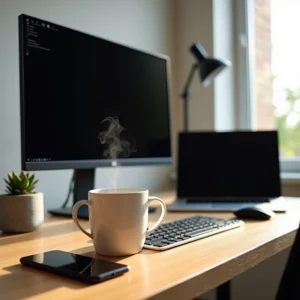
Want to run AI language models on your own computer without relying on cloud services? The Ollama install process makes this surprisingly accessible.
Ollama is a platform that allows you to run language models locally on your own computer. For example, you can start with a small but capable model like Phi3, which is only 2.2 GB and can run on a PC with 8GB of RAM. This means you get privacy, control, and no internet dependency.
In this guide, we’ll walk you through the complete Ollama Windows installation process step by step, from downloading to running your first model.
What is Ollama and Why Use It on Windows 10
What Ollama Does
Ollama is an open-source framework that lets you download and run large language models directly on your computer. Think of it as a local AI model runner that operates in the background on your Windows machine, providing both a command-line interface and an API for interacting with various models.
The platform packages model weights, configurations, and datasets into a unified structure called a ‘Modelfile’, which reduces the entire setup process to running a single command. Once installed on Windows, Ollama runs as a native application with support for both NVIDIA and AMD Radeon GPUs.
One of the key technical features is quantization, which reduces computational load and allows these models to run efficiently on consumer-grade hardware. The Ollama API runs locally on http://localhost:11434, making it easy to integrate with other applications.
Benefits of Running LLMs Locally
Running models locally through Ollama offers several practical advantages. Privacy stands out as the primary benefit since all data processing happens on your device and never gets transmitted to external servers. This becomes particularly valuable for handling sensitive information or meeting strict data governance requirements.
Cost efficiency is another factor. Cloud APIs charge for every token you generate, but local models run free once you have the hardware. Specifically, Ollama eliminates the dependency on cloud services, making AI development accessible even with budget constraints.
Offline capability means you can use AI without an internet connection. This proves critical for secure environments or areas with poor connectivity. As a result, you maintain 100% ownership of your data.
Performance also benefits from local deployment. By removing the network round-trip to remote servers, response times can be significantly faster, especially on machines with capable GPUs. You gain full customization control as well, allowing you to adjust system prompts, temperature settings, and model behavior.
For industries where data privacy is paramount, such as healthcare, finance, and government, Ollama provides the ability to function within secure environments where regulatory compliance is essential.
System Requirements for Windows 10
Windows 10 version 22H2 or newer is required, with support for both Home and Pro editions. The system needs to be x86_64 architecture, as ARM64 is not yet supported.
For GPU acceleration, you’ll need NVIDIA drivers version 452.39 or newer if you have an NVIDIA card. AMD users require either ROCm v7 / HIP7-capable driver stack for ROCm acceleration, or a Vulkan-capable AMD Radeon driver for Vulkan acceleration.
RAM requirements vary by model size. Generally, 7B models require at least 8GB of RAM, 13B models need at least 16GB, and 70B models require at least 64GB. Storage space is equally important. You’ll need at least 4GB for the binary installation itself. Once installed, models can range from tens to hundreds of gigabytes in size.
The Ollama installation doesn’t require Administrator privileges and installs in your home directory by default. Models get stored in C:\Users<user>.ollama\models on Windows systems. You’ll also need to allow port 11434 through your firewall for API access.
While Ollama can run on CPU alone, having a dedicated GPU with sufficient VRAM significantly improves performance, especially for larger models.
How to Download and Install Ollama on Windows 10
Step 1: Download Ollama for Windows
Navigate to ollama.com/download/windows to access the official download page. The site automatically detects your operating system and presents the Windows version. Click the “Download for Windows” button to start downloading the OllamaSetup.exe file, which is approximately 200MB in size.
Save the installer to a location you can easily access, such as your Downloads folder. The download typically completes within a few minutes depending on your internet connection speed.
Step 2: Run the Installation File
Locate the OllamaSetup.exe file you just downloaded. Double-click to launch the installer. The Ollama install process doesn’t require Administrator privileges and installs directly into your user account.
If Windows Defender SmartScreen displays a warning message, click “More info” and then select “Run anyway”. Follow the installation wizard through these steps:
- Accept the license agreement
- Choose your installation directory (default location works for most users)
- Select “Add to PATH” to ensure command-line access
- Click “Install” to begin the installation
The installer sets up the application without delay. Once complete, Ollama runs automatically in the background. You’ll notice an Ollama icon appears in your system tray at the bottom of your screen. If the icon doesn’t appear immediately, search for Ollama in your Windows programs and launch it manually.
By default, models get stored at C:\Users\your_user.ollama. If you need to change this location (for instance, if your C: drive has limited space), you can set the OLLAMA_MODELS environment variable. Right-click on the computer icon, choose Properties, navigate to “Advanced system settings,” click Environment variables, and add a new user variable with the name OLLAMA_MODELS and your desired path as the value.
Step 3: Verify Installation in Command Prompt
Open a new Command Prompt window by pressing the Windows key, typing “cmd,” and pressing Enter. Type the following command:
ollama --version
This displays the installed version number if the Ollama Windows installation succeeded. Alternatively, simply type ollama and press Enter. You should see a list of available commands.
Step 4: Check Ollama is Working Properly
As a result of the installation, the Ollama API now runs locally on your machine. Open your web browser and navigate to http://localhost:11434. If you see “Ollama is running,” the service is active and ready to accept requests.
The ollama command is now available in cmd, PowerShell, or any terminal application you prefer. You can verify the background service is operational by checking for the Ollama icon in your system tray. If you need to restart the service, quit the tray application and relaunch it from the Start menu.
How to Download and Run Your First Model
Understanding Ollama Models
The Ollama library at ollama.com/library hosts hundreds of pre-configured models ready for download. Each model represents a large language model packaged with its weights, configuration, and necessary software bundled together. Basically, you browse the library online to see what command you’ll need to run in Command Prompt to install it.
Models fall into distinct categories. General purpose models like Llama 3.2 and Mistral handle conversation and reasoning tasks. Coding models such as CodeLlama, DeepSeek Coder, and Qwen 2.5 Coder specialize in code generation and debugging. Specialized models include Llama 3.2 Vision for image analysis and Phi-3 for edge devices.
Each model listing shows tags like q4_0, q5_k_m, or q8_0. These represent quantization levels that compress the model to reduce VRAM requirements. Q4 uses 4-bit precision and is roughly half the size of Q8. The _K_M suffix indicates newer quantization methods that preserve better accuracy at similar file sizes.
Choosing the Right Model for Your PC
Your hardware determines which models you can run smoothly. The primary bottleneck is RAM for CPU-only systems or VRAM for GPU acceleration.
For 8GB RAM systems, stick with 1B-3B parameter models like Llama 3.2 3B or TinyLlama. Systems with 16GB RAM can handle 7B-8B models such as Llama 3.1 8B or Mistral 7B. If you have 32GB RAM, 13B-14B models become viable. Machines with 64GB or more can run 70B+ models like Llama 3.3 70B.
Phi3 serves as an excellent starter model at only 2.2GB, running comfortably on 8GB RAM systems. For coding tasks on mid-range hardware, Qwen 2.5 Coder 7B offers strong performance at approximately 5GB VRAM.
Installing a Model Using Command Prompt
Open Command Prompt and use either ollama pull or ollama run. The pull command downloads without starting the model, while run downloads and immediately launches it.
To install Phi3:
ollama run phi3
For Llama 3.2:
ollama pull llama3.2
The download begins immediately, showing progress as files transfer. Model sizes range from a few gigabytes to over 40GB for larger variants. Once complete, the model is stored locally and ready for use.
Verify your installed models anytime with:
ollama list
Running the Model for the First Time
If you used ollama run, the model starts automatically after download. You’ll see a prompt where you can type questions directly. For instance, ask “What is Python?” and press Enter to receive a response.
To start a previously installed model, use the same run command:
ollama run phi3
The model loads into memory and presents an interactive chat interface. Type your questions naturally and watch the AI generate responses in real-time. As a result, you now have a functional local LLM running privately on your Windows machine without cloud dependencies.
Basic Commands and Usage in Ollama Windows
After completing the Ollama Windows installation and running your first model, you’ll need to master the command-line interface to manage your local AI setup effectively.
Essential Command Prompt Commands
Open Command Prompt to access these core commands:
ollama listshows all models stored on your system with their sizes and modification datesollama psdisplays currently loaded models in memoryollama stop <model>unloads a specific model from memory immediatelyollama rm <model>deletes a model permanently from your storageollama show <model>reveals detailed information about model architecture, parameters, and configuration
Models stay loaded in memory for 5 minutes by default before automatic unloading. This speeds up response times when making multiple requests. If you want immediate memory release, use the stop command.
Commands Inside the Model
During an interactive session with a model, type /? to see available in-session commands. These operate differently from external Command Prompt commands.
The /set parameter command adjusts model behavior. For instance, to change the context window size, type /set parameter num_ctx 8192. By default, Ollama uses a context window size of 4096 tokens.
Type /show info to display current model details including architecture, parameter count, context length, and system prompts. The /clear command clears your screen without ending the session, keeping your conversation history intact in memory.
How to Ask Questions and Get Responses
In interactive mode, simply type your question after the prompt and press Enter. The model generates responses in real-time, streaming text as it processes your input. You can ask follow-up questions to build on previous responses, creating a conversational flow.
For non-interactive mode, pipe your prompt directly: printf "Your question here\n" | ollama run llama3.2. This executes a single query and returns to the command line.
Add the --verbose flag to see detailed generation statistics including token counts, processing duration, and evaluation rates.
Exiting and Restarting Models
Press Ctrl+D or type /bye to exit the interactive session. Both methods produce the same result, returning you to the Command Prompt.
To restart a model, run the same ollama run <model> command you used initially. The model loads from your local storage without re-downloading. On account of background service management, you can also restart Ollama entirely by quitting the system tray icon and relaunching it from the Start menu.
Managing Your Ollama Installation
Once your Ollama install is complete and models are running, you’ll need to know where files live and how to maintain your setup.
Where Models are Stored on Windows 10
Models get stored in C:\Users%username%.ollama\models by default. Given that model files can be tens to hundreds of gigabytes in size, storage management becomes critical.
To access this location quickly, press Ctrl+R and type explorer %HOMEPATH%\.ollama in the Run dialog. This opens the folder containing both models and configuration files.
If your C: drive lacks sufficient space, change the storage location by setting the OLLAMA_MODELS environment variable. Open Settings, navigate to System, select About, click Advanced System Settings, go to the Advanced tab, and select Environment Variables. Click New under user variables, create a variable named OLLAMA_MODELS, and set the value to your preferred storage path. After saving, quit the Ollama tray application completely and relaunch it from the Start menu for changes to take effect.
Viewing Installed Models
The ollama list command displays all downloaded models with their sizes and modification dates. This helps you monitor disk usage and identify which models consume the most space.
Removing Unwanted Models
Delete specific models using ollama rm <modelname>. For instance, ollama rm qwen2:7b-instruct-q8_0 removes that particular model from your system. The command frees up disk space by permanently deleting the model files.
Updating Ollama
Ollama on Windows downloads updates automatically. Click the system tray icon and select “Restart to update” when a new version becomes available. The update applies after restarting the application.
Similarly, you can update manually by downloading the latest installer from ollama.com/download. Running the new installer over your existing Ollama Windows installation upgrades the software while preserving your downloaded models and settings.
Conclusion
You now have everything needed to complete your Ollama install on Windows 10 and start running AI models locally. The process is straightforward: download the installer, run it, and pull your first model based on your system’s capabilities.
Privacy, cost savings, and offline functionality make local AI incredibly valuable. Therefore, start with smaller models like Phi3 if you have limited RAM, then experiment with larger ones as you become comfortable.
Monitor your storage space regularly and remove unused models to keep things organized. Most importantly, remember that local AI puts you in complete control. Your data stays private, costs remain predictable, and you can experiment freely without cloud dependencies.

-
 Solar Gadgets5 months ago
Crucial Fronus PV5200 Program Settings Explained
-
 Coding Tools4 months ago
Common Errors: “Out of Memory” fix
-

 Coding Tools4 months ago
How to Set Up Continue AI Offline?
-
 Solar Inverter4 months ago
How to Configure Your Solar Inverter Manual
-

 Solar Gadgets4 months ago
7 Best Solar Powered Camping Gear 2026
-
 Solar Inverter4 months ago
How to set inverter for 24 hour backup